


Once you’ve upgraded On2Air Backups, you need to set your automated schedule and, if available on your plan, add more Airtable bases.
_(2)/w=1920,quality=90,fit=scale-down)
/w=1920,quality=90,fit=scale-down)

In this tutorial
- Upgrade and Choose Your Backup Schedule
- Schedule Options
- How to Set a Backup Schedule
- Enable Your Backup
- How to Back Up Multiple Airtable Bases to a Backup Project
Upgrade and Choose Your Backup Schedule
To enable an automated backup schedule and add more Airtable bases, upgrade to a plan.

- Upgrade to a Backups Plan
Schedule Options
The schedule option depends on the plan you chose.
Monthly - available on all plans
- Choose a day of the month
Options are: * 1st day of month * Mid month (15th) * Last day of month
Weekly - available on Essentials, Pro, and Premium plans
- Choose any day of the week
Daily - available on Pro and Premium plans
- Choose a time of day
* Choose a specific hour of the day * Toggle Yes to Include Weekends (Optional)
Continuous - available on Premium plans
- This backup schedule runs continually. Each time a backup is completed, another one begins.
* Toggle Yes to Include Weekends (Optional)
How to Set a Backup Schedule
- Once you’ve upgraded, you need to set your new automated Schedule
- Upgrade to a Backups Plan
- In your Backups Project, click Settings, then click Schedule

- Choose your Backup Project Interval and Interval Value
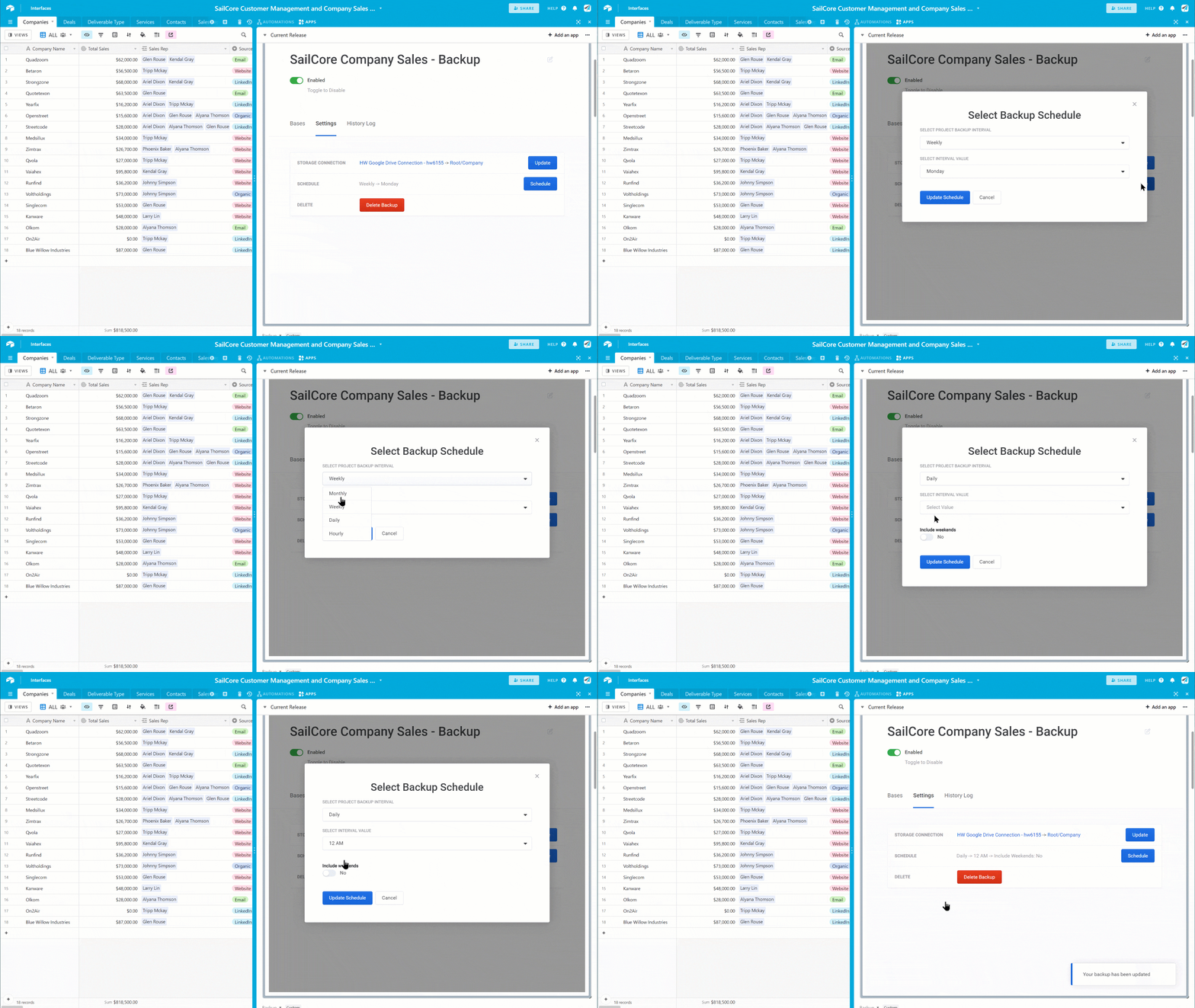
- Click Update Schedule
Enable Your Backup
Once you’ve set your backup schedule (paid plans), click Start Backup

How to Back Up Multiple Airtable Bases to a Backup Project
- To add more Airtable bases to your Backup Project, click Add Base to Backup

- You’ll choose your Airtable connection and the next Airtable base you want to add to the Project
- Click Start Backup to start backing up all the Airtable bases in the Backup Project
You can do this as many times as you need depending on your Backups plan


- You can click the History Log tab to see your backup status